Default Object Lock
This article describes how to manage the Default Object Lock feature, including how to enable, edit, and disable it for storage accounts:
- Allow Default Object Lock for backup destinations
- Edit Default Object Lock settings for backup destinations
- Disable Default Object Lock for storage account
Overview
Default Object Lock prevents backup data written to a destination from being deleted or overwritten for a specified period.
Once objects are locked:
- They cannot be modified or deleted until the retention period expires
- In Compliance mode, deletion is not possible even for administrators
Backup Agent does not attempt to delete backup data until the default lock period expires.
Default Object Lock can also be combined with Object Lock for GFS backups to extend retention for full backups created under a GFS policy.
Allow Default Object Lock for Storage Account
Default Object Lock can only be enabled if Object Lock (Immutability) is configured on the storage side.
- For existing buckets: Object Lock must already be enabled
- For new buckets: Object Lock must be enabled during creation
Refer to the storage account documentation for details on how to enable default Object Lock:
Once Object Lock is enabled on the storage side, you can:
- Enable Default Object Lock for an existing destination in Backup Agent
- Create a new backup destination (bucket) for an existing storage account with Default Object Lock enabled.
Edit Default Object Lock Settings for Storage Account
If the Object Lock retention period is changed on the storage side:
- If the settings can be retrieved automatically, the protection period is populated
- If not, you will be prompted to enter the protection period manually.
To manually configure the protection period:
- Open Backup Agent.
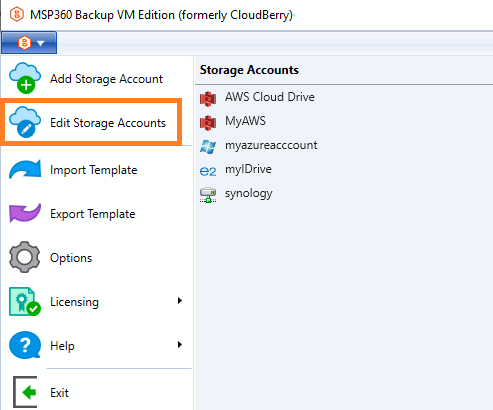
- In the main menu, select Edit storage account.
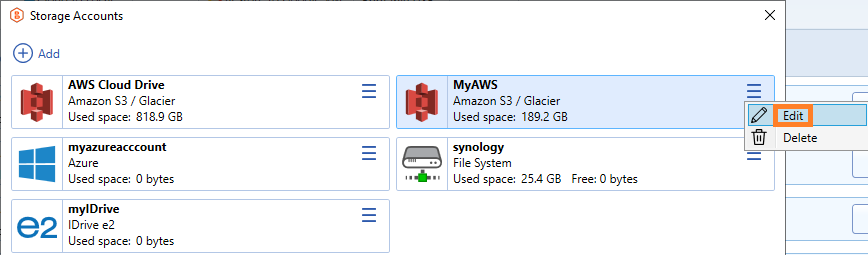
- Open the actions menu for the storage account and click Edit.
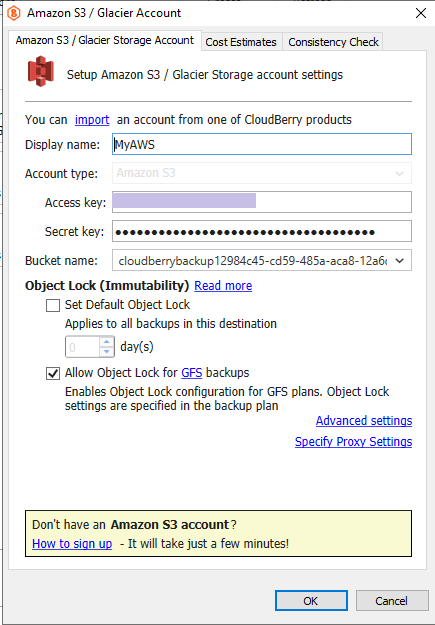
- Select the required bucket.
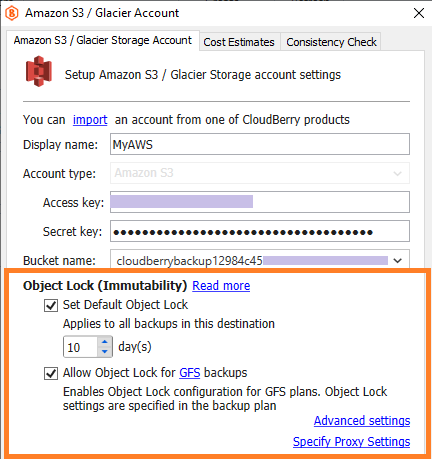
- Ensure the number of days under Set Default Object Lock matches the retention period configured on the storage side.
- Click OK.
Changes take effect immediately for all newly created backup data.
Disable Default Object Lock for Storage Account
If Object Lock is disabled on the storage side:
- Existing immutable backups remain locked until their retention period expires
- Newly created backups will no longer be protected by Object Lock
In this case, it is recommended to disable Default Object Lock in Backup Agent.
To disable Default Object Lock:
- Open Backup Agent.
- In the main menu, select Edit storage account.
- Open the actions menu and click Edit.
- Select the required bucket.
- In the Edit destination dialog, clear the Set Default Object Lock checkbox.
- Click OK.
After this, newly created backups will be managed according to the configured retention policy.