Object Lock for GFS Backups
Object Lock for GFS backups is a feature type that locks backup datasets for a period specified in GFS retention policy settings. Within this period, backup data cannot be modified or deleted. The Object Lock for GFS backups feature type requires the Advanced (GFS, Object Lock) schedule.
Object Lock features are not available in Home Edition (free).
Object Lock (Immutability) is supported for the following storage providers:
- Amazon AWS
- Wasabi
- Backblaze B2
Note that Object Lock for GFS backups should be allowed by means of Backup Agent as described below.
About Object Lock
Object Lock for GFS backups is a solution best suited for preserving data in accordance with compliance requirements. It allows an administrator to specify a data retention period or to implement a legal hold that prevents data from being deleted until the hold is removed.
The Object Lock for GFS backups feature type is linked with the GFS retention policy. If the Object Lock for GFS backups is applied along with GFS settings, full backups that are subject to the GFS retention policy become immutable for the GFS keeping period.
For example, if in GFS settings you enable weekly and monthly keeping periods with 2 weeks and 2 months of keeping backups respectively, and then enable immutability, it means that all weekly and monthly backups selected by the GFS keeping period assignment mechanism will be locked on backup storage and cannot be deleted with Backup Agent.
Use the Object Lock for GFS backups feature with extreme caution. Once backup data becomes immutable, there is no way to delete it from the storage until the specified GFS keeping period expires, except by terminating the storage account. Carelessly configured settings can cause high storage bills.
Retention Modes For Immutable Data
Generally, there are two retention modes:
- Governance mode (default)
- Compliance mode
These retention modes apply different levels of protection.
In Governance mode, users cannot overwrite or delete an object version or alter its lock settings using Backup Agent. In Governance mode, objects in backup storage are protected against deletion, but you can still delete the object, if necessary, in the backup storage provider console.
In Compliance mode, a protected object version cannot be overwritten or deleted by any user, including the root user in your storage provider account. When an object is locked in Compliance mode, its retention mode cannot be changed, and its retention period cannot be shortened. Compliance mode helps ensure that an object version cannot be overwritten or deleted for the duration of the retention period defined in the GFS retention policy settings.
By design, when you create a destination bucket, Governance mode is applied by default. If you need to use Compliance mode for your backup purposes, contact the MSP360 support team.
How It Works
Enable this feature for an appropriate storage account if you need to comply with regulations, maintenance or legal requirements, or anything else that requires an immutable backup dataset. In some cases, it could be easier to create a new bucket in the existing storage account for immutability purposes. When you create a new immutable bucket, you automatically create a default lifecycle to clean deleted versions.
You can only enable Object Lock for GFS backups for new buckets. If you want to turn on Object Lock for an existing bucket, contact the storage provider support team to find out whether they can help you.
Note that if your storage provider is AWS and you create a new bucket with the Object Lock (Immutability} feature enabled, versioning for this bucket is automatically enabled.
If you create a bucket with Object Lock enabled, you cannot disable it or suspend versioning for this bucket.
Support for Versioning Buckets in Amazon S3/Wasabi
With Object Lock for GFS backups enabled in the storage account, synchronization is performed using a file list formed from the list of versions.
Along with it, a so-called postponed synchronization approach is used: data is collected from a list of files, then analyzed and added to the database. During the analysis, immutable generations are checked for deleted files. If any deletions are detected, some deleted files are restored: common generation files (generation metadata, GFS marker) and restore point files up to the first successful one.
During consistency checks, the same logic applies: immutable generations are checked for deleted files. If any deletions are detected, some deleted files are restored: this concerns common generation files (generation metadata, GFS marker) and restore point files up to the first successful one.
Enable Object Lock for GFS backups for Storage Account
Note that to use Object Lock, the GetBucketObjectLockConfiguration permission must be granted to the storage account.
First, make sure your storage account supports the Object Lock (Immutability). Currently, Immutability is supported for Amazon S3, Wasabi, Backblaze B2, and IDrive e2.
To enable the Object Lock for GFS backups feature for the storage account, proceed as follows:
- Open Backup Agent.
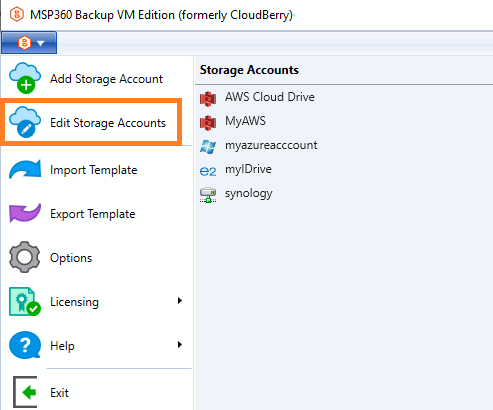
- In the main menu, select Edit storage account.
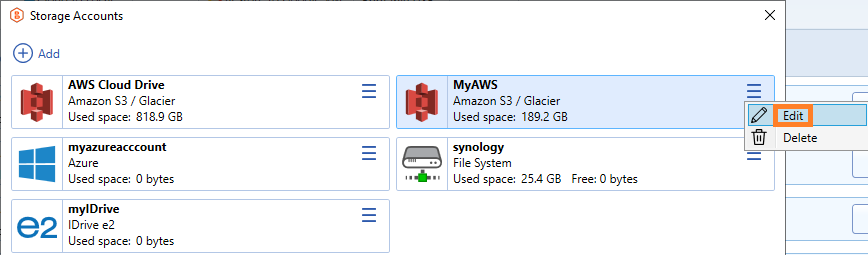
- Open the actions menu for the storage account and click Edit.
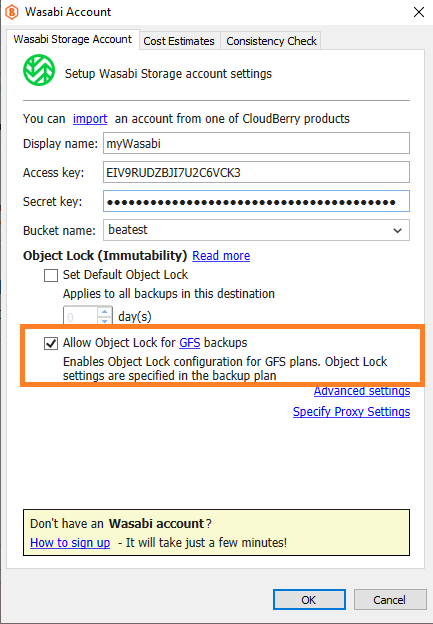
- Select the required bucket that supports the Object Lock (Immutability) or create a new one. If the selected bucket does not support Object Lock (Immutability), you will see an appropriate warning.
Note that you can only enable the Object Lock for GFS backups feature for new buckets. If you want to enable the Object Lock (Immutability) for an existing bucket, contact your storage provider support team.
- Select the Allow Object Lock for GFS backups checkbox.
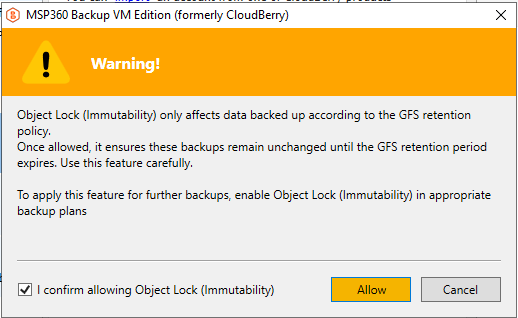
- Read the confirmation dialog carefully, then confirm the action.
- Click OK.
Once the Object Lock for GFS backups feature is enabled on the required storage account, proceed to create or edit the backup plans that require immutable data.
Enable Object Lock for GFS backups in Backup Plan
- Edit the backup plan you intend to apply the Object Lock for GFS backups to or create a new one.
- Follow the backup wizard steps to the Retention Policy step.
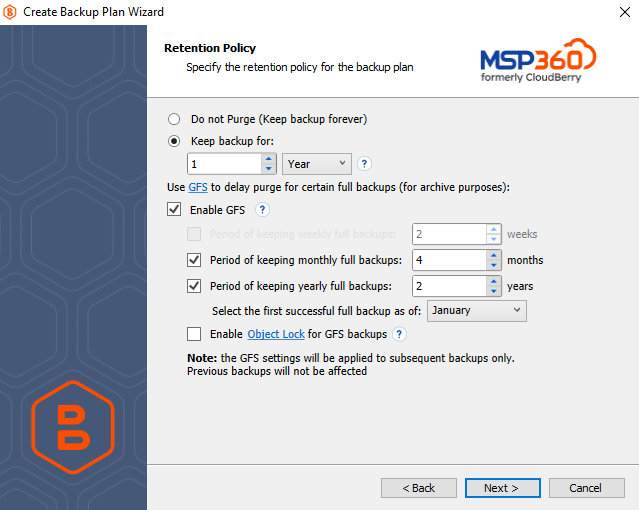
- Select the Enable GFS checkbox.
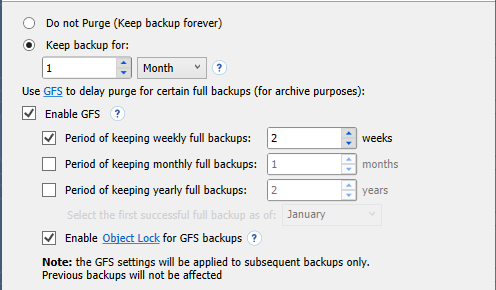
- Configure your GFS settings according to your requirements or compliance mandate.
- Select the Enable Object Lock for GFS backups checkbox.
- Confirm the action in a dialog box, then click Next.
Attention! Once Object Lock for GFS backups is enabled, it will not be possible to edit or delete the backup data until the specified GFS keeping period expires, so be extremely cautious, since it may lead to serious storage bill increases.
- Follow the backup wizard to the end to save the backup plan configuration.