Get Technical Support
Our dedicated technical support team is here to help you resolve any issues you may encounter. Below you will find all the necessary information to get the assistance you need quickly and efficiently.
Primary Support Channel: Support Portal
For the fastest and most effective assistance, please submit all technical support requests through our MSP360 Support Portal. This system ensures your ticket is routed to the right experts and tracked for timely resolution. Log in to the Support portal using your registered email address.
Create a Ticket: MSP360 Support Portal.
Check Ticket Status: You can also use the Support Portal to view updates and add comments to your existing cases.
Other Contact Methods
- Technical Support Email: For initial contact, we strongly recommend using the Support Portal above. If you need to email, you can reach us at: support@msp360.com
Open a Case
To create a support case:
- Open the Support Portal at support.msp360.com and sign in using your registered email.
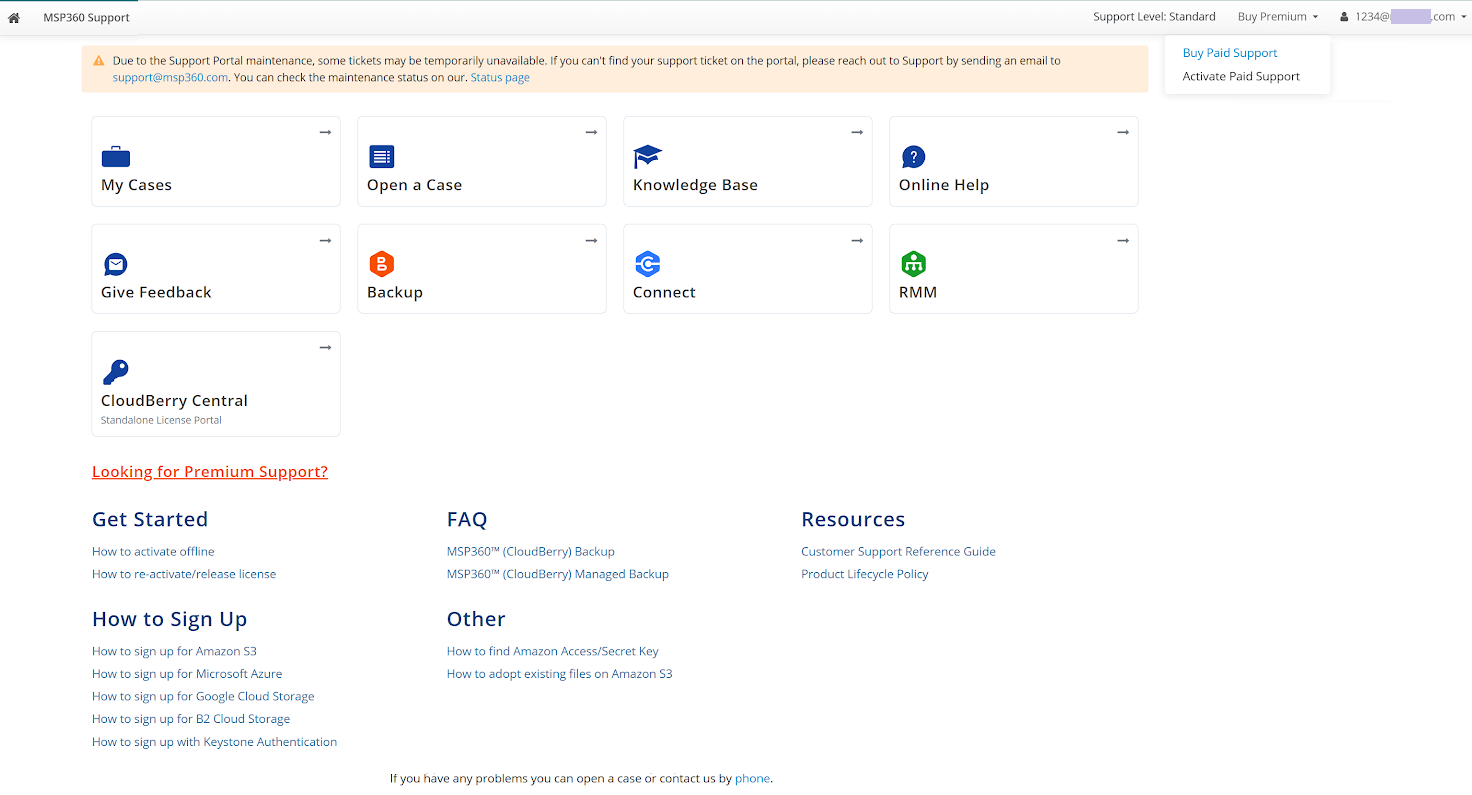
- Click Open a Case.

- Select the type of support case.
- Select Technical product issue for all cases related to MSP360 product usage.
- Select Licensing / Sales for all queries related to subscriptions or sales.
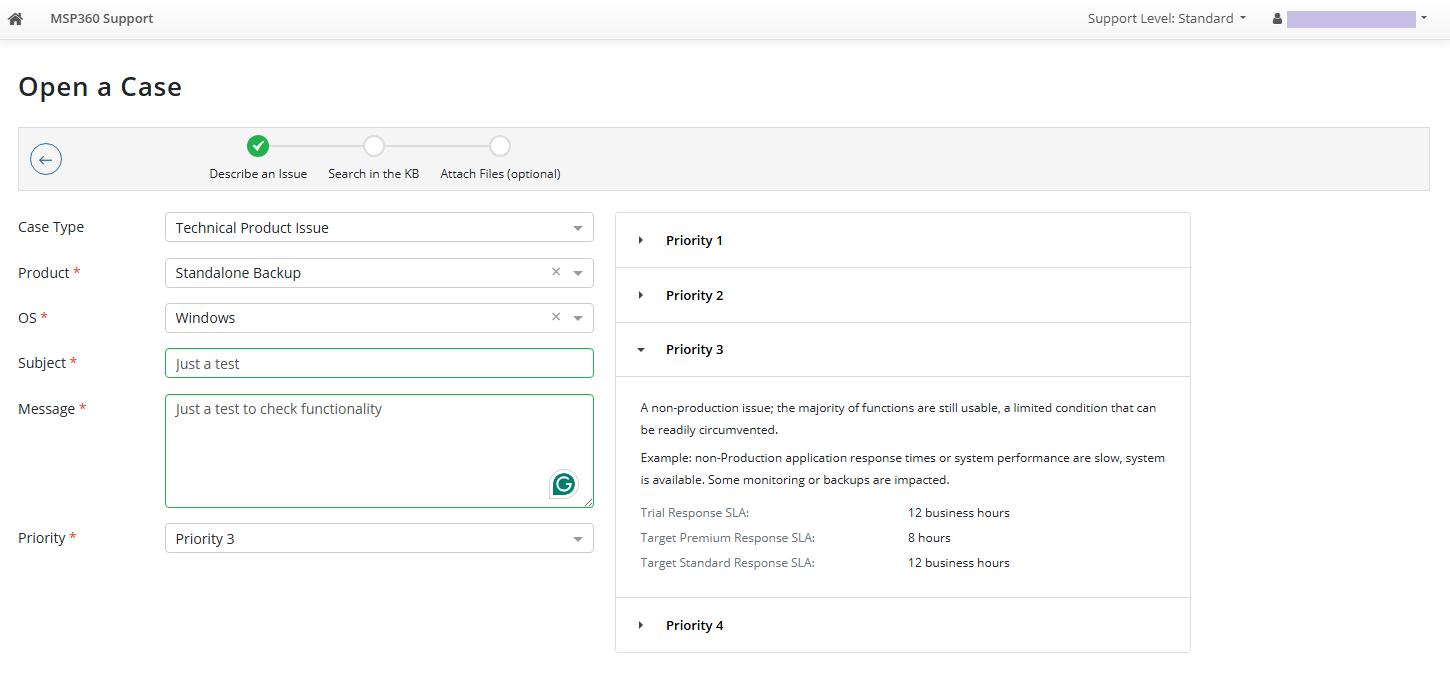
- Select the support case priority
- Complete the page of the support case form.
- Once the form page is complete, click Next.
- Have a look at the suggested Knowledge Base articles; one of them may contain the solution. If the suggestions are not useful, click Next.
- Attach logs and screenshots related to the issue.
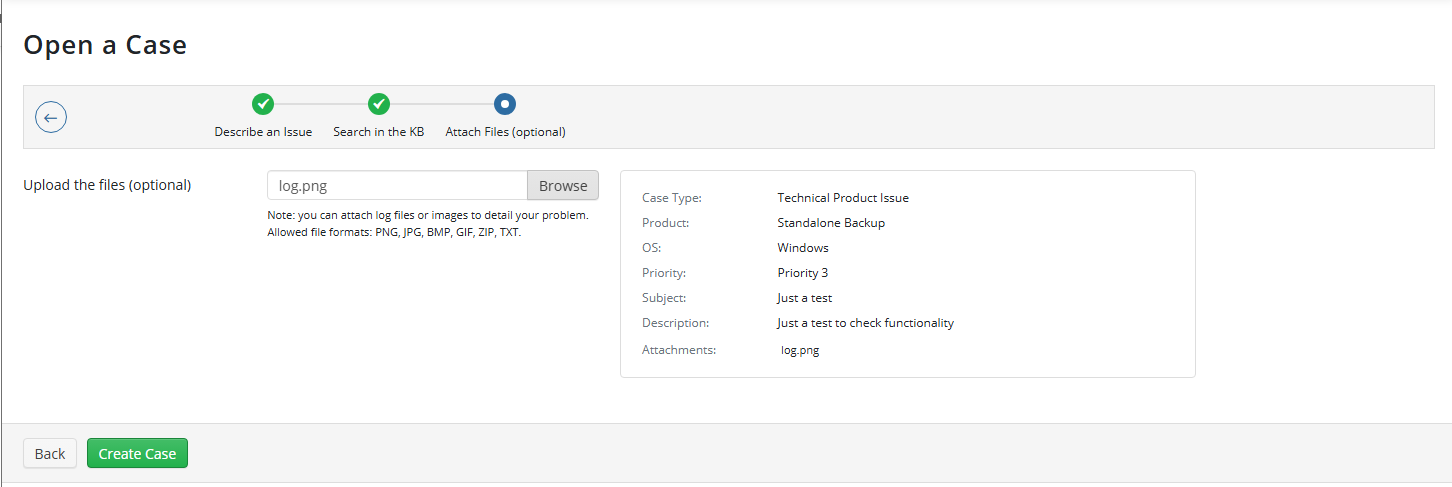
- Click Create Case.
After the case is created, an automatic confirmation email will be sent to your registered email address.
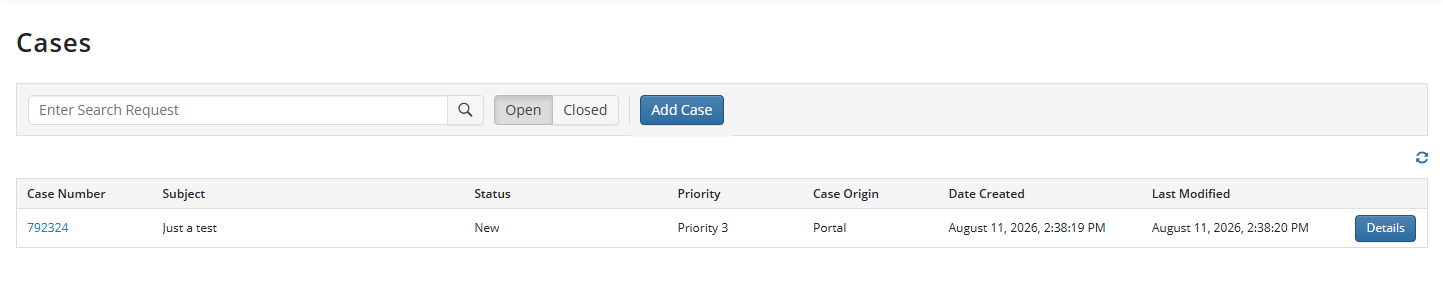
You can view all your cases in the Support Portal.
For detailed information on our response time commitments based on your product and support plan, please refer to our official MSP360 Customer Support Reference Guide.
Support Case Priority:
Priority 1. A business critical software component or an MSP360 managed system is inoperable or unavailable; production system is down; or there is an emergency condition. Requires an immediate workaround or solution. Examples: Excessive abnormal terminations impacting all monitoring, backups and schedules or a down/offline production system cannot be restored; application or system failure caused by MSP360 product.
Priority 2. An issue adversely impacts production operations, but the production system is not down. The product operates, but is seriously restricted.
For example: production application response times or system performance are slow, system is available. Some monitoring or backups are impacted.
- Priority 3. A non-production issue; the majority of functions are still usable, a limited condition that can be readily circumvented.
For example: non-production application response times or system performance are slow, system is available. Some monitoring or backups are impacted.
- Priority 4. A minor problem or issue that does not affect the operation of the product and can be easily worked around.
For example: “How to” questions; the text of a message, or page of documentation is worded poorly or misspelled, General Feedback, Feature Requests.
Priority 1 Service Level Agreement
Trial Response SLA: N/A
Target Premium Response SLA: 4 hours
Target Standard Response SLA: 6 business hours
Priority 2 Service Level Agreement
Trial Response SLA: 8 business hours
Target Premium Response SLA: 6 hours
Target Standard Response SLA: 8 business hours
Priority 3 Service Level Agreement
Trial Response SLA: 12 business hours
Target Premium Response SLA: 8 hours
Target Standard Response SLA: 12 business hours
Priority 4 Service Level Agreement
Trial Response SLA: 24 business hours
Target Premium Response SLA: 12 hours
Target Standard Response SLA: 24 business hours
Purchase Premium Support
Premium Customer Support* is available 24/7 for Managed Backup customers and provides faster response time, regardless of your case priority. Premium Support customers receive prompt attention, in which the support engineer’s first response is to determine the root cause of the issue and perform a QA analysis, followed by a remote live-support session for high-priority disaster-recovery cases.
MSP360 is pleased to offer first-level technical support services by US-based engineers, using American English.
To buy Premium support:
- Open the Support Portal at support.msp360.com and sign in using your registered email.
Click Buy Paid Support and proceed with the payment. After the purchase is completed, return to the Support Portal to activate Paid Support.
Manage Your Cases
Premium Support
To access the Support Portal:
- Open the Support Portal at support.msp360.com and sign in using your registered email.
- Click My Cases.

- All available support cases are displayed in the grid. You can find the required case and communicate with the Support team, if necessary.
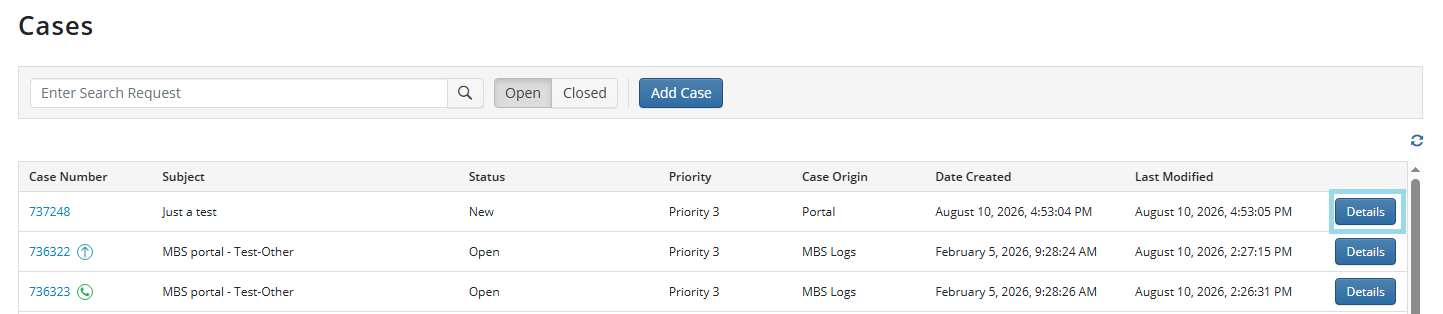
- Click Details for the case you want to manage. From this view, you can:
- Communicate with support staff with Reply. You can attach screenshots and log files to your replies.
- Escalate the selected ticket once, if needed, by clicking Escalate the ticket
- Order a phone call regarding the selected ticket by clicking Order a call.
Communicate with support staff
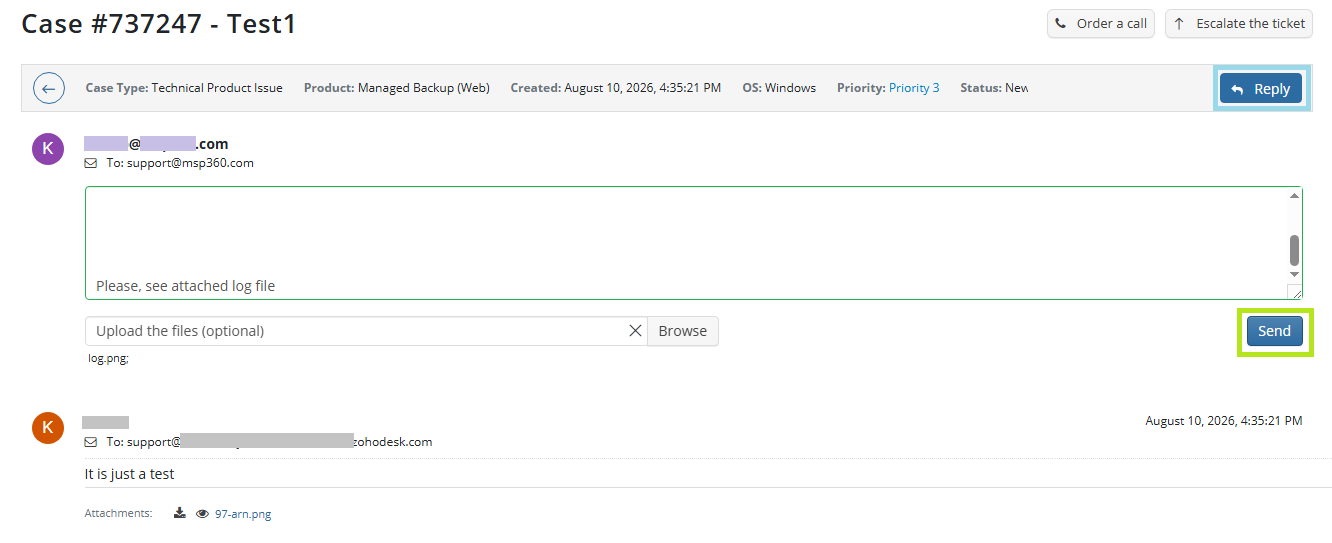
- On Cases, click Details for the case you want to reply to.
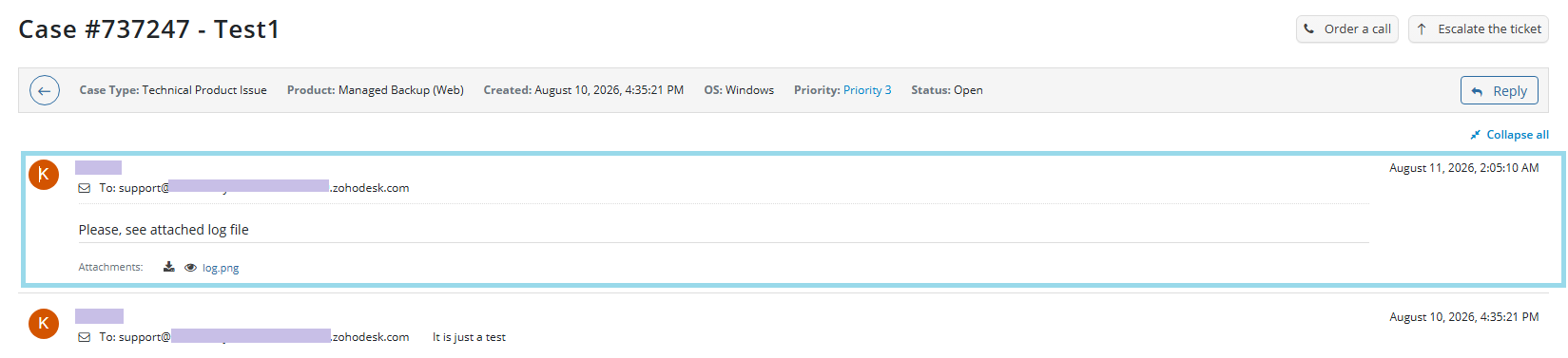
- Click Reply, enter your message, attach log files and screenshots, and then click Send.
- Your message appears in Details.
Escalate selected case
- On Cases, click Details for the case you want to escalate. You can escalate the ticket only once.
- Click Escalate the case.
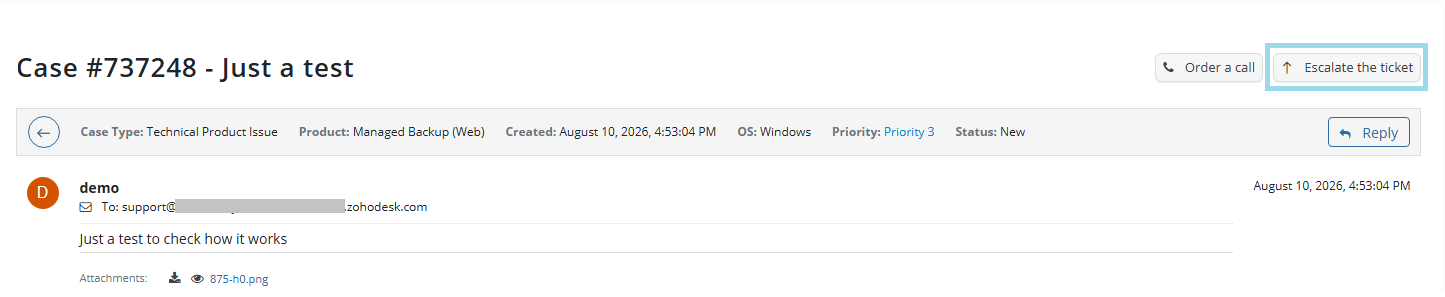
- Provide a justification for the escalation.
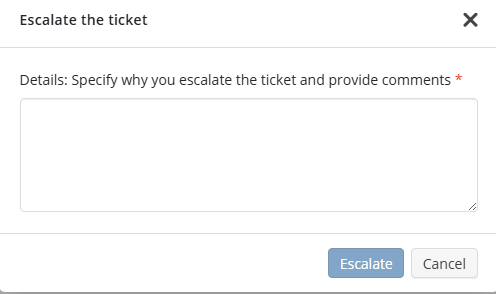
Request a phone call related to selected ticket
- On Cases, click Details for the case you want to discuss.
- Click Order a call.
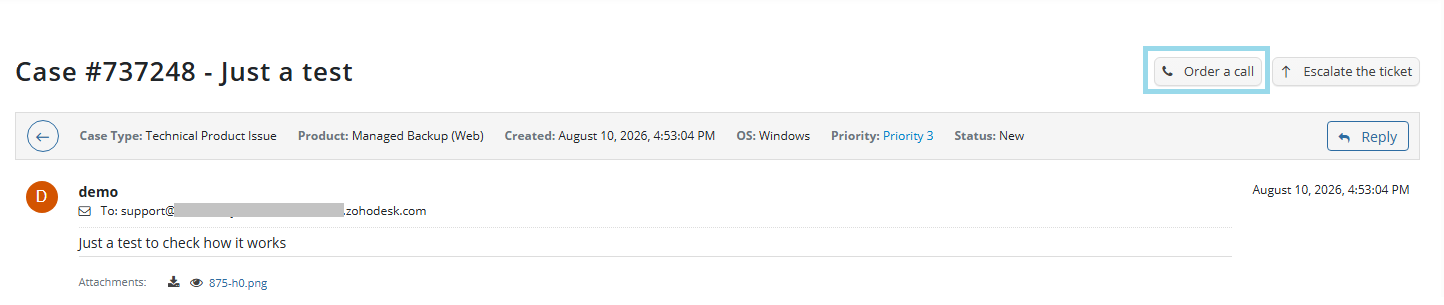
- Provide the requested information.
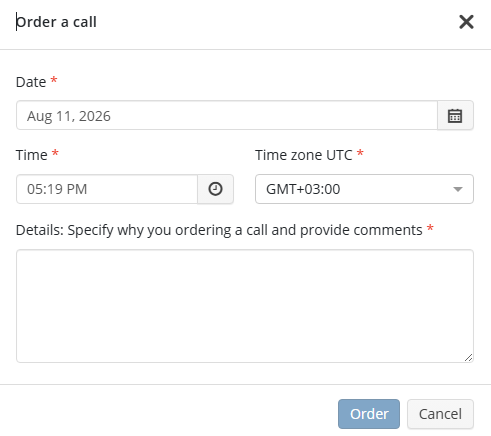
Standard Support
To access the Support Portal:
- Open the Support Portal at support.msp360.com and sign in using your registered email.
- Click My Cases.

- All available support cases are displayed in the grid. You can find the required case and communicate with the Support team, if necessary.
Communicate with support staff
- On Cases, click Details for the case you want to reply to.
- Click Reply, enter your message, attach log files and screenshots, and then click Send.
- Your message appears in Details.
Additional Resources
Before contacting support, you might find an immediate answer in our knowledge base. For a full overview of all support options, including phone numbers for specific products, see our technical support page.