Add Cloud Storage
This section describes how to add cloud storage in general. For storage-specific descriptions, refer to the following articles:
To Add Amazon S3 Cloud Storage
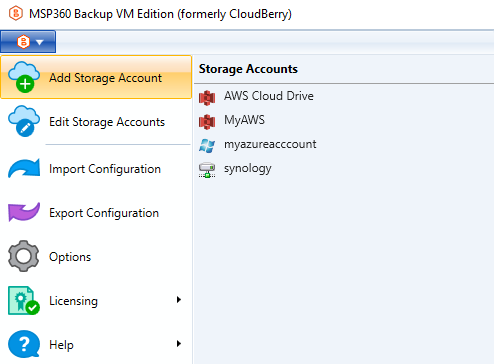
- Open the application menu, then click Add Storage Account.
- Select storage account type.
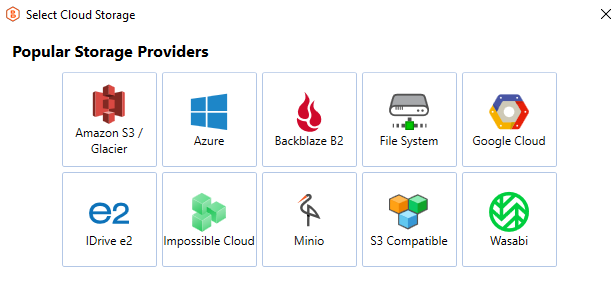
Amazon Glacier Vaults are no longer supported.
All available storage accounts are visible in the wizard.
General Settings
Specify Storage Account details:
Authentication
Enter your Access Key and Secret Key for authentication.
Bucket Selection, Default Object Lock< Object lock for GFS Backup
Select the required bucket from the Bucket name drop-down list.
Depending on the bucket configuration:
If Object Lock (Immutability) is not enabled (or cannot be enabled), the corresponding options will be visible when you select an existing bucket or create a new one.
If Object Lock (Immutability) is enabled (or can be enabled), you can manage the object lock settings.
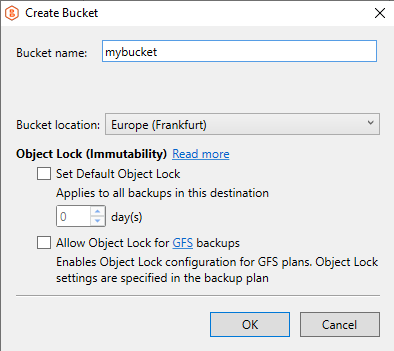
You can also:
- Create a new bucket
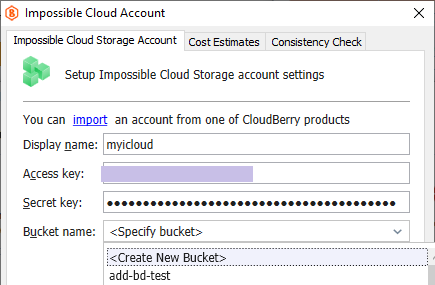
Enable Default Object Lock and/or Object Lock for GFS backups for the bucket.
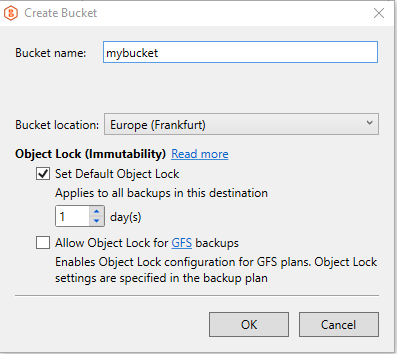
- To enable Default Object Lock, select the corresponding option and provide the correct protection period value if it does not appear automatically:
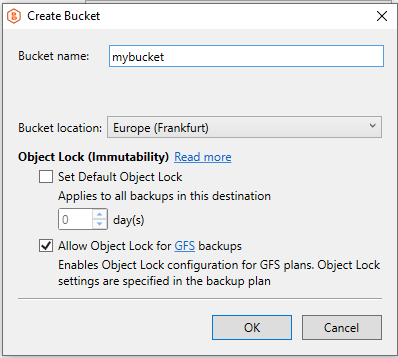
- To enable Object Lock for GFS backups, select the corresponding option and confirm your selection:
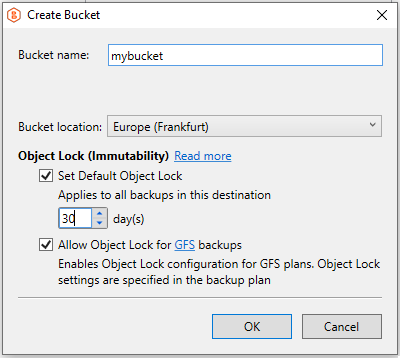
- To enable both Default Object Lock and Object Lock for GFS backups, select both options:
Advanced Settings
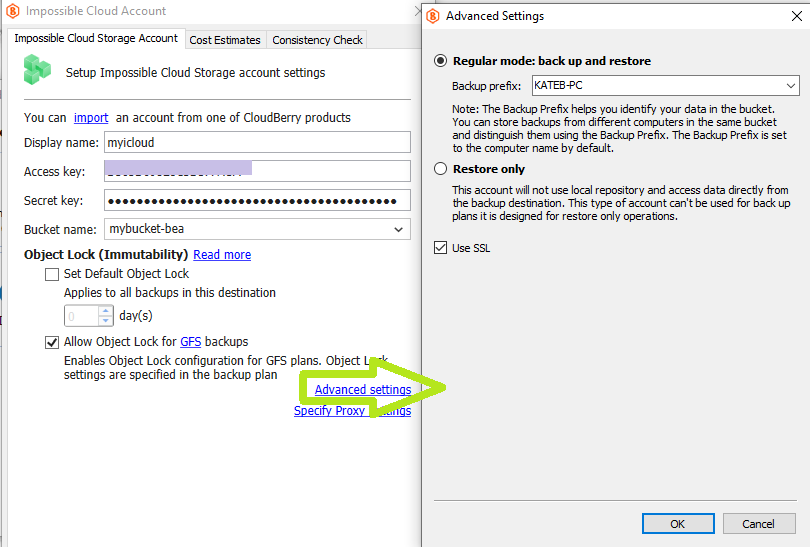
To configure additional options, click Advanced Settings.
Backup Mode
Select one of the following modes:
- Regular mode - enables both backup and restore operations.
- Restore only - allows using the storage only for restore operations.
Additional Options
- To enable a secure connection, select the Use SSL checkbox.
- S3 Acceleration is enabled by default.
Final Steps
- If you are using a firewall, configure the proxy settings.
- After completing the configuration, click OK.