Add Impossible Cloud Storage Account
To add an Impossible Cloud account to the Backup Service:
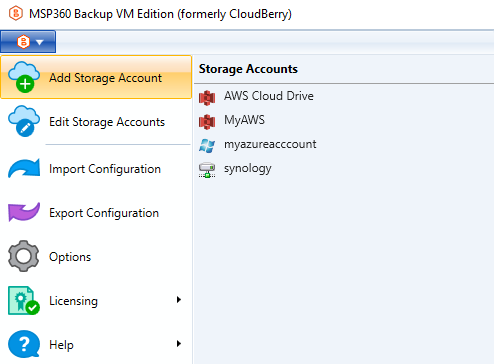
- Open the application menu, then click Add Storage Account.
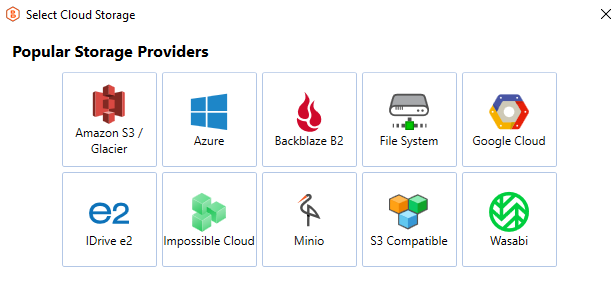
- Select Impossible Cloud.
General Settings
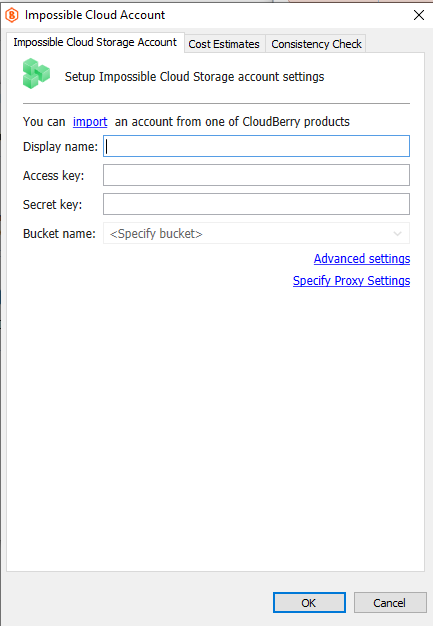
Specify Storage Account details:
- In the Display name field, enter a name for the cloud storage. This name will be used throughout the application.
Authentication
Enter your Access Key and Secret Key for authentication.
If you do not have Impossible Cloud storage, click How to Sign Up at the bottom of the dialog.
Bucket Selection
Select the required bucket from the Bucket name drop-down list or create a new bucket.
Depending on the bucket configuration:
If Object Lock (Immutability) is not enabled (or cannot be enabled), the Object Lock options will not be visible.
If Object Lock (Immutability) is enabled (or can be enabled), you can manage the object lock settings.
You can also:
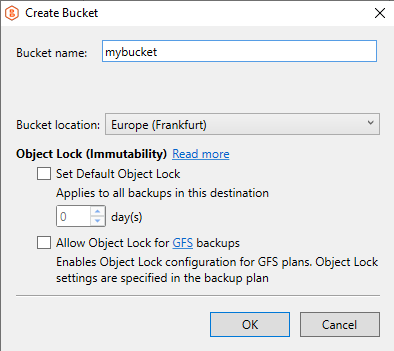
- To create a new bucket, select the corresponding option:
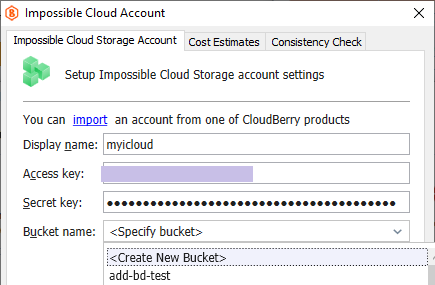
Enable Default Object Lock and/or Object Lock for GFS backups for the bucket.
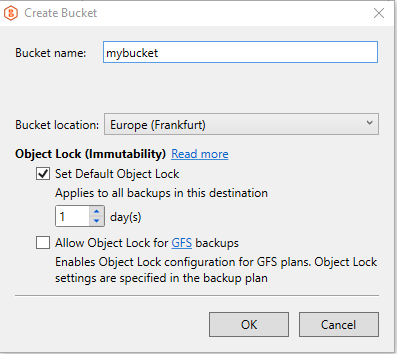
- To enable Default Object Lock, select the corresponding option and provide the correct protection period value if it does not appear automatically:
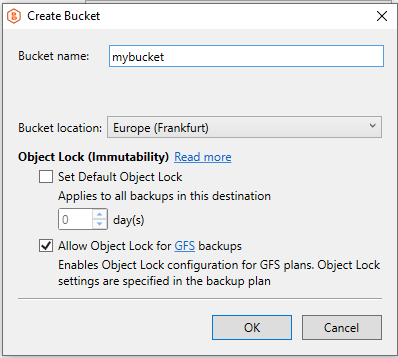
- To enable Object Lock for GFS backups, select the corresponding option and confirm your selection:
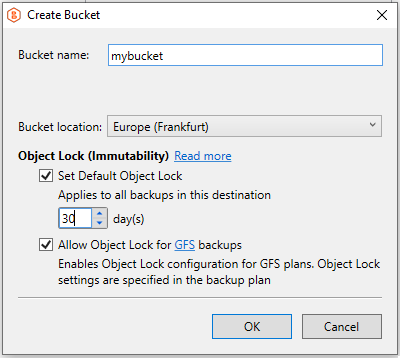
- To enable both Default Object Lock and Object Lock for GFS backups, select both options:
Advanced Settings
To configure additional options, click Advanced Settings.
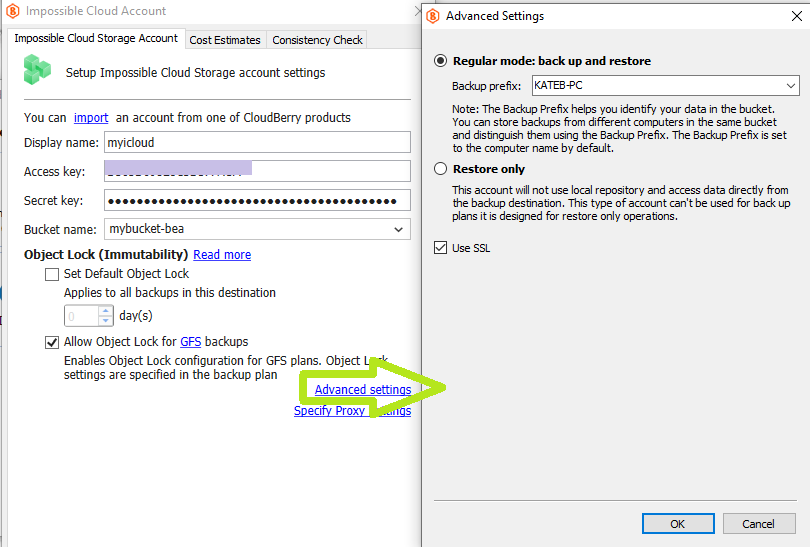
Select one of the following modes:
- Regular mode - enables both backup and restore operations.
- Restore only - allows using the storage only for restore operations.
Final Steps
- If you are using a firewall, configure the proxy settings.
- After completing the configuration, click OK.
- Once you have finished specifying the account details, click OK.