Platform: WindowsProducts: MSP360 Backup
Article ID: s0810Last Modified: 07-Oct-2026
Add Wasabi Storage
To add a new Wasabi storage destination, proceed as follows:
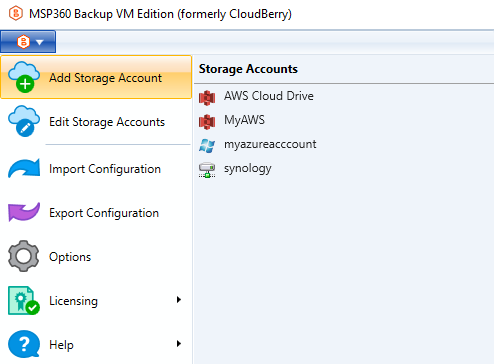
- Open the application menu, then click Add New Account.
- Select Wasabi.
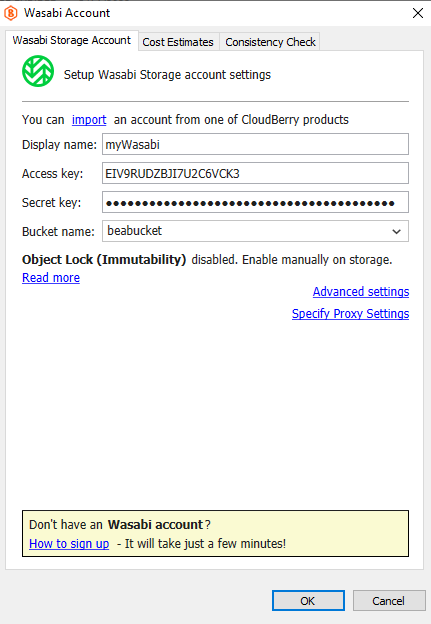
In the Wasabi Account property box, specify:
- In the Display name field, specify the cloud storage name that will be used further.
- In the Access Key field, specify the Access Key for your Wasabi account.
- In the Secret Key field, specify the Secret Key value that has been generated while creating an application key pair.
Specify the bucket for your backups. To do this, select the required bucket in the Bucket name drop-down list.
Depending on the bucket configuration:
- If Object Lock (Immutability) is not enabled (or cannot be enabled), the corresponding options will be visible:
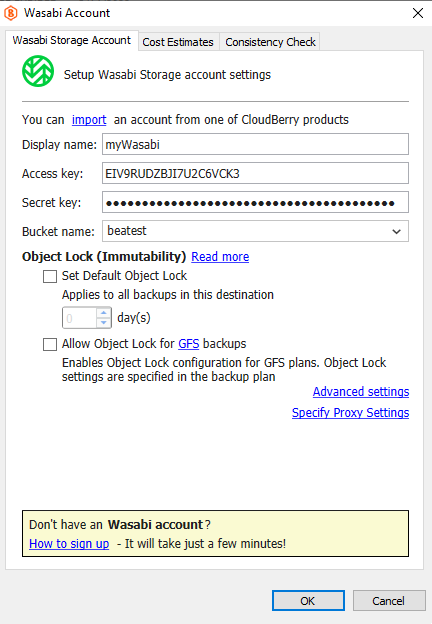
- If Object Lock (Immutability) is enabled (or can be enabled), you can manage the object lock settings.
You can also:
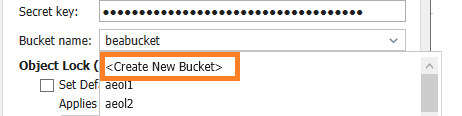
- Create a new bucket
Enable Default Object Lock and/or Object Lock (Immutability) for the bucket.
Advanced Settings
To configure additional options, click Advanced Settings.
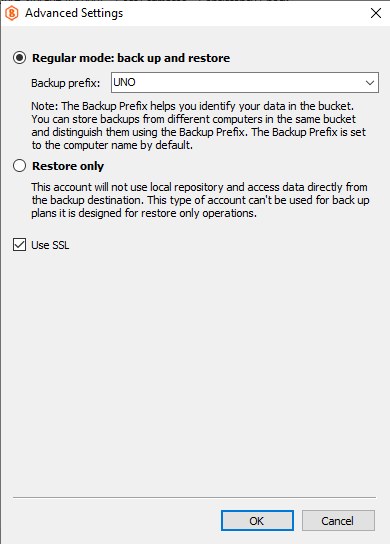
Backup Mode
Select one of the following modes:
- Regular mode - enables both backup and restore operations.
- Restore only - allows using the storage only for restore operations.
Additional Options
- To enable a secure connection, select the Use SSL checkbox.
Final Steps
- If you are using a firewall, configure the proxy settings.
- After completing the configuration, click OK.