Connect Quick Support
Connect Quick Support for Windows provides single-session remote access with zero footprint. This lightweight utility is designed for one-time support sessions: it requires no installation, does not need administrative rights to run, and automatically removes itself from the system once the session ends. Simply launch the application, share your ID and PIN with the Support Team, and they will connect to assist you.
Downloading Connect Quick Support
- Navigate to the Connect Quick Support product page.
- Click Download.
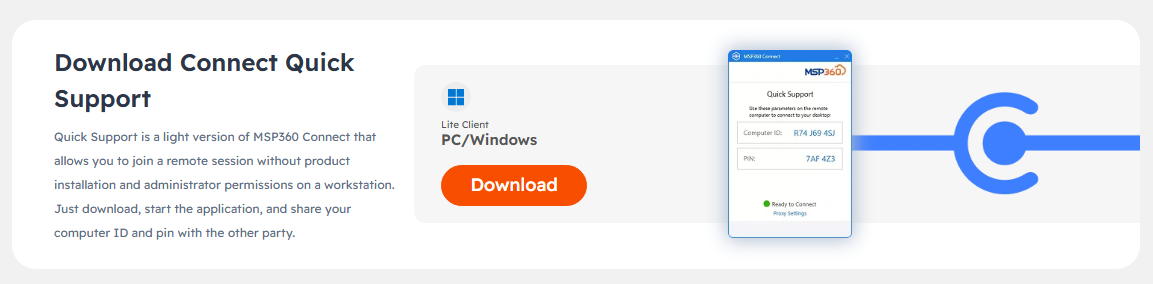
- The Connect Quick Support (.exe) file will be downloaded to your computer.
Connect Quick Support Modes
Connect Quick Support operates in two modes:
Full mode
Full mode is available when the current Windows user has administrative privileges. This is the recommended mode because limited mode may restrict support engineers from accessing resources needed to resolve your issue.
Limited Mode
Limited mode is used when administrative privileges are not available. In this mode, access to protected system resources is blocked.
If the current Windows account does not have administrative privileges, Connect Quick Support will always launch in limited mode.
Launching Connect Quick Support
When you run the application, a prompt will appear asking whether you allow the app to make changes to your device:
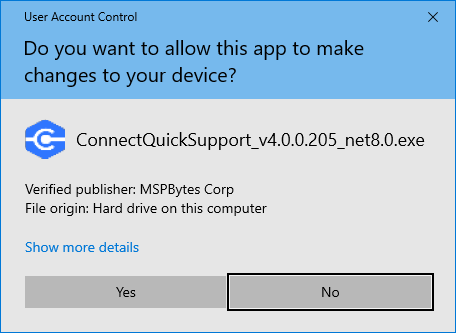
If you select Yes and your account has administrative privileges: The application starts in full mode (recommended).
If you select Yes but your account does not have administrative privileges: The application starts in limited mode. Support engineers will have the same access level as your user account.
If you select No: The application starts in limited mode, and support engineers will not have access to protected system resources.
In some environments, you may be prompted to enter administrative credentials to confirm your choice.
After the application starts, you can proceed with using Connect Quick Support as described in the following article.